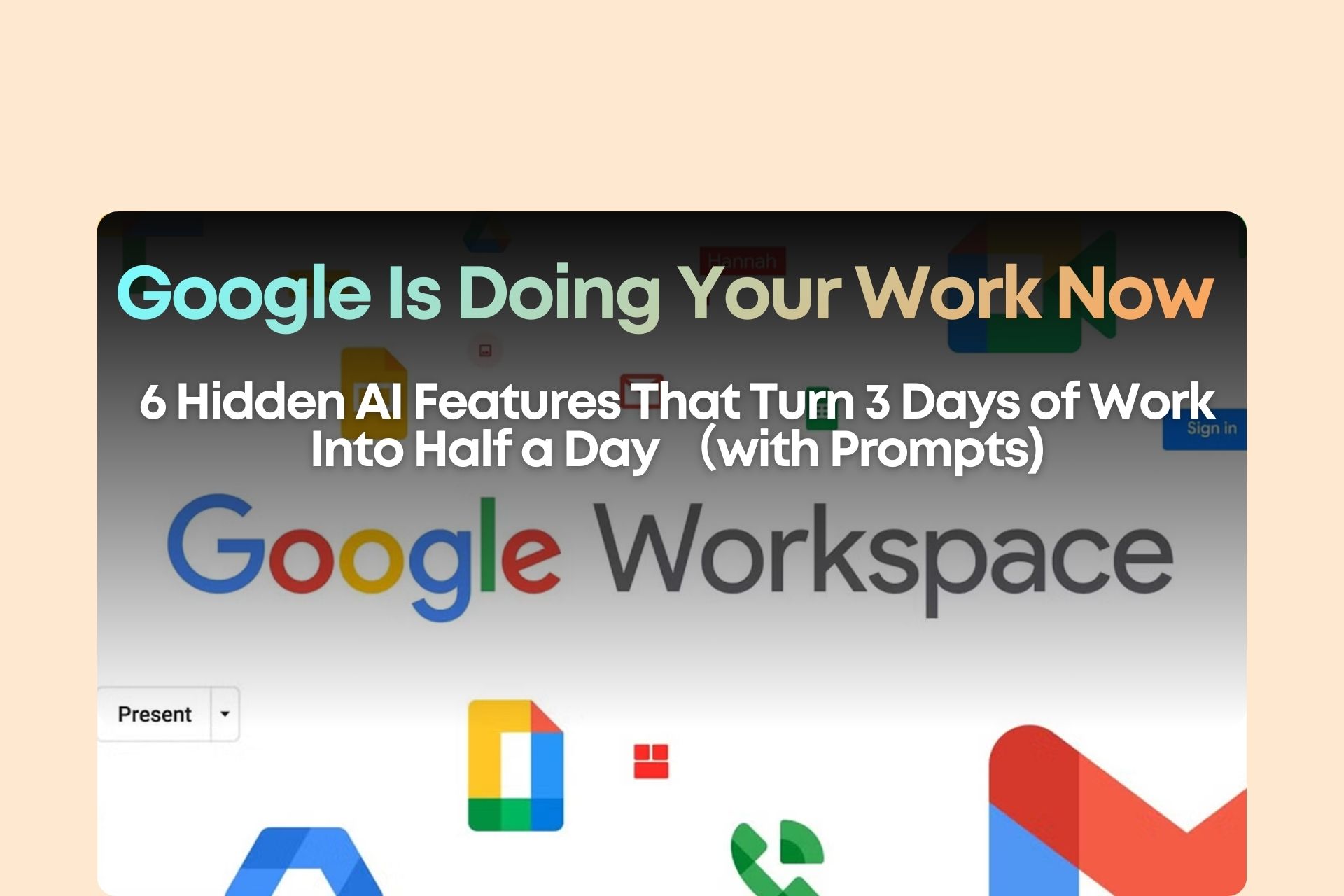
Google Workspace AI Test: 6 Hidden Features That Save Hours of Work
Every workday probably looks something like this:
- Gmail inbox full of long email threads
- A blank Google Docs page waiting for a proposal
- Google Sheets data that takes forever to analyze
- Slides that need to be built page by page
- Meetings that require manual note-taking and follow-ups
None of these are actually high-value work, yet they consume hours every day.
The ironic part?
Google Workspace already has AI that can handle much of this.
And the best part:
- No new apps required
- No coding needed
- You may already have access to it
To test it, I ran a full work scenario using Google Workspace AI — from receiving an email to sending the final follow-up.
The workflow included:
- Email processing
- Proposal writing
- Data analysis
- Presentation creation
- Meeting notes
- Follow-up emails
The result?
Work that normally takes three days was completed in about half a day.
Here are the 6 Google Workspace AI features that made it possible.
1. Gmail AI: Summarize Long Email Threads in Seconds
Many work emails look like this:
- Forward
- Reply all
- Reply all again
- Add a few more comments
Soon you’re dealing with a 10+ email thread.
Traditionally, you would:
- Read everything from top to bottom
- Try to identify key decisions
- Extract deadlines and questions
That usually takes 8–10 minutes.
With Gmail AI (Gemini panel), you can use a prompt like this:
Summarize this email thread in bullet points.

Focus on:
- Key decisions
- Budget constraints
- Timeline
- Open questions

Keep the summary under 6 bullet points.
Within seconds, the AI produces a concise summary such as:
- Hiring goal and timeline
- Budget constraints
- Key stakeholders
- Outstanding questions
⚠️ Important tip
Always double-check the summary.
AI is great at extracting information, but final judgment should still come from you.
2. Gmail AI: Automatically Generate Professional Replies
Another powerful Gmail feature is Help Me Write.
Instead of drafting an email from scratch, simply describe what you want.
Example prompt:
Reply to MedEase CEO David.

Confirm today's Google Meet meeting at 3:30 PM.

Mention that I will present:
- A customized employer branding proposal
- Recruitment data analysis
- A demo culture video

Also ask whether COO Sarah and Finance Lead Michael will join.

Tone: professional but not overly formal
Length: under 120 words
Gmail instantly generates a polished response.
You can also refine it using:
- Shorten – makes the email more concise
- Polish – improves tone and clarity
Then simply hit Send.
Time comparison
TaskBefore AIWith AIEmail review + reply20 minutes5 minutes
3. Google Docs AI: Generate a Proposal Draft
Starting from a blank document is often the hardest part of writing.
Google Docs AI can create a structured first draft.
Example prompt:
Create a professional employer branding strategy proposal for MedEase.

Company background:
MedEase is a 30-person HealthTech startup in Hong Kong.

Hiring goal:
Hire 20 employees within 6 months.

Structure:
1. Executive Summary
2. Current Hiring Challenges
3. 3-Phase Employer Branding Plan
4. Expected Impact
5. Investment Options
Within seconds, AI generates:
- A proposal outline
- Section content
- Initial strategy suggestions
- Pricing structure
However, remember:
AI provides the framework — not the final version.
You still need to:
- Add strategic insights
- Customize recommendations
- Refine messaging
Think of AI as a writing accelerator, not a replacement for expertise.
4. Google Drive AI: Retrieve Insights From Past Projects
A lesser-known capability is Gemini inside Google Drive.
You can ask AI to extract insights from previous files.
Example prompt:
@Google Drive
Summarize the timeline and deliverables from previous employer branding proposals.
AI can:
- Search relevant documents
- Extract key information
- Generate summaries
This allows you to quickly review:
- What worked in previous projects
- What mistakes to avoid
- Realistic timelines
Essentially, it turns your Drive into a searchable knowledge base of past experience.
5. Google Sheets AI: The Powerful =AI() Formula
One of the most underrated features is the =AI() function in Google Sheets.
Instead of writing complex formulas, you can write prompts.
Example:
=AI("Based on the offer acceptance rate and hiring cost in this row,
classify the recruitment channel as High Efficiency,
Medium Efficiency or Low Efficiency", C2:F2)
Dragging this formula down allows AI to evaluate each row automatically.
Another example:
=AI("Summarize the biggest problems in this recruitment dataset in 3 sentences.", C2:F46)
This can produce insights such as:
- Overall acceptance rate
- The weakest hiring channel
- Key opportunities for improvement
Time comparison
TaskBefore AIWith AIRecruitment data analysis2 hours30 minutes
6. Google Meet AI: Automatic Meeting Notes
One of the most frustrating parts of meetings is writing notes afterward.
Google Meet now includes a feature called:
Take Notes for Me
During the meeting, AI automatically generates:
- A meeting summary
- Key decisions
- Action items
Example output:
Meeting Summary
- CEO prefers Package B
- Finance agrees to HKD 78K in three installments
Action Items
- Sophia sends revised timeline
- Client provides employee stories
Before AI:
20 minutes of manual notes.
With AI:
2 minutes to review.
The Final Step: AI Writes Your Follow-Up Email
After the meeting, you can generate the follow-up email instantly.
Example prompt:
Write a follow-up email after today's meeting.

Include:
- Thank them for the discussion
- Confirm Package B (HKD 78,000)
- Mention revised timeline (6 weeks)
- Attach proposal and demo video

Tone: professional but friendly
Length: under 150 words
Within seconds, you have a ready-to-send follow-up email.
Full Workflow Time Comparison
TaskBefore AIWith AIEmail processing20 minutes5 minutesProposal writing4–5 hours1.5 hoursData analysis2 hours30 minutesSlides + demo1.5 days2 hoursMeeting + follow-up35 minutes17 minutes
The result:
Three days of work compressed into half a day.
How to Enable Google Workspace AI
There are currently two main ways to access these features.
Option 1: Google AI Plus
A paid subscription that includes:
- Gmail AI
- Docs AI
- Sheets AI
- Meet AI
For professionals who work heavily with documents and data, the time saved can easily justify the cost.
Option 2: Workspace Labs (Free Trial)
You can apply here:
https://workspace.google.com/labs-sign-up
Some AI features are available for testing.
Why Your Company Account Might Not Have AI
Many users notice that their company Google account doesn't show AI features.
This is usually because:
Your IT administrator hasn’t enabled Gemini in Google Admin Console.
The fix:
- IT admin logs into Admin Console
- Enable Gemini for Workspace
Once activated, the organization can access the features.
Key Takeaway
The real power of Google Workspace AI is not that it replaces your work.
It’s that it compresses low-value tasks into minutes.
This frees up time for the things that truly matter:
- Strategic thinking
- Decision making
- Creative problem solving
AI doesn’t replace expertise.
But it can remove the busywork that slows experts down.