NotebookLM is great at generating content, but the moment you export a Slide Deck, many people hit a wall—
because what you usually get is a locked PDF.
You can’t select the text.
Convert it to PPT and the layout completely breaks.
Bilingual spacing goes wild, text turns into images, and editing becomes a nightmare.
Why does this happen?
The reasons are actually simple:
- PDF is a print format by nature: it’s meant as a final output, not a structured, editable file
- File conversion is fragile: especially with bilingual (Chinese + English) layouts, where line spacing and character widths easily break
The good news?
Below are 5 practical solutions, ranging from fast emergency fixes to stable, client-ready workflows.
Method 1: AI Image-to-Text Reconstruction (Fastest Emergency Fix)
Best if:
You only care about the content and don’t need to preserve the original layout.
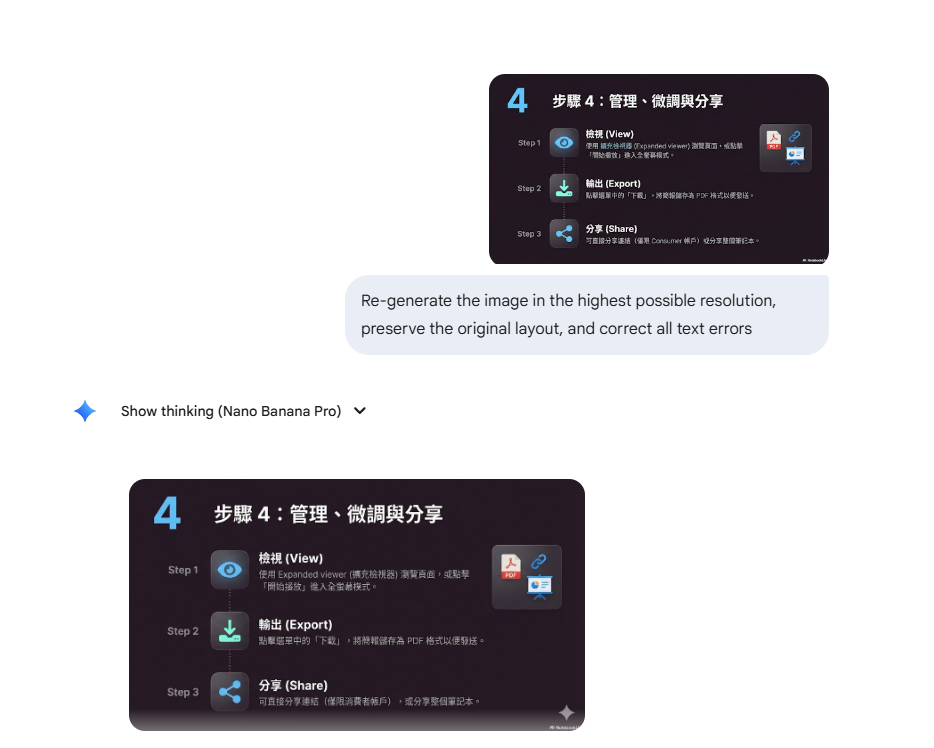
If the formatting is already beyond repair, treat each slide as an image and let AI “re-read” and rebuild it from scratch.
Tool: Nano Banana Pro (via the Lovart platform)
Workflow:
1. Export NotebookLM slides as images
2. Upload them to Lovart
3. Select Nano Banana Pro (strong performance for Chinese and multilingual recognition)
4. Batch-generate new slides
Pros: Very fast; no garbled text from conversion
Cons: Requires manual re-layout; consumes credits
Method 2: Visual Editor (Canva)
Best if:
You want to mostly keep the original layout and just edit text or adjust positions.
Tool: Canva (usually requires Pro)
Workflow:
1. Upload the PDF and import it as a Presentation
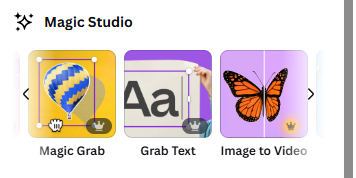
2. Use Grab Text to convert image text into editable text boxes
3. Use Magic Grab to move or adjust background elements
4. Export as PPTX
Pros: Intuitive interface; low learning curve
Cons: Some features are paid; layer separation isn’t always perfect
Method 3: AI Structure Reconstruction (Codia NoteSlide)
Best if:
You have a long deck (10+ slides) and want automated structure rebuilding.
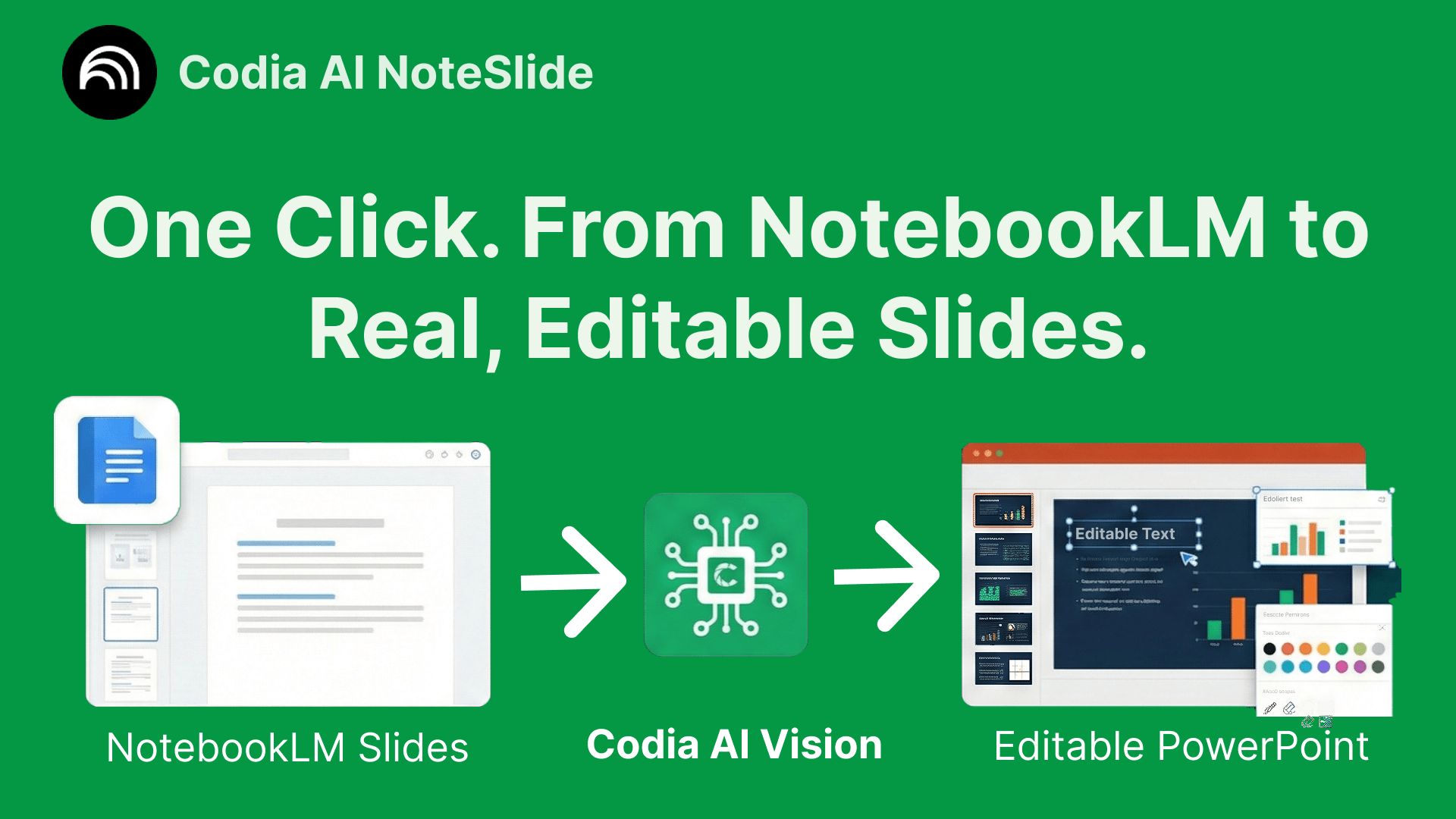
Tool: Codia NoteSlide
Workflow:
1. Upload the PDF
2. AI automatically separates text, images, and shapes
3. Outputs an editable PowerPoint file
Practical tip:
Don’t upload the entire deck at once.
First, test 3–5 of the most complex slides (charts, bilingual text) to evaluate quality and credit usage.
Method 4: The Most Stable Conversion Workflow (Client-Ready)
Best if:
This deck is going to a client or your boss—and layout errors are not acceptable.
This is the safest approach and minimizes rework.
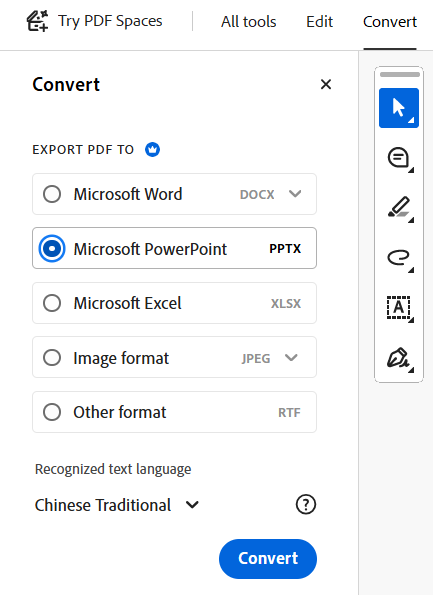
Tools: Adobe Acrobat (or iLovePDF / Smallpdf) + Google Slides
Workflow:
1. Use Acrobat or a free tool (e.g., iLovePDF / Smallpdf) to convert PDF to PPTX
2. Upload the PPTX to Google Drive and open it in Google Slides
3. Adjust line spacing and fonts in Slides (this step is critical)
4. Download the final PPTX
Recovery tip:
If a slide still comes out as an image, use Gemini’s image editing features in Google Slides to fix it.
Method 5: Free and Fast Option (DeckEdit)
Best if:
You want a quick conversion with no registration and no cost.
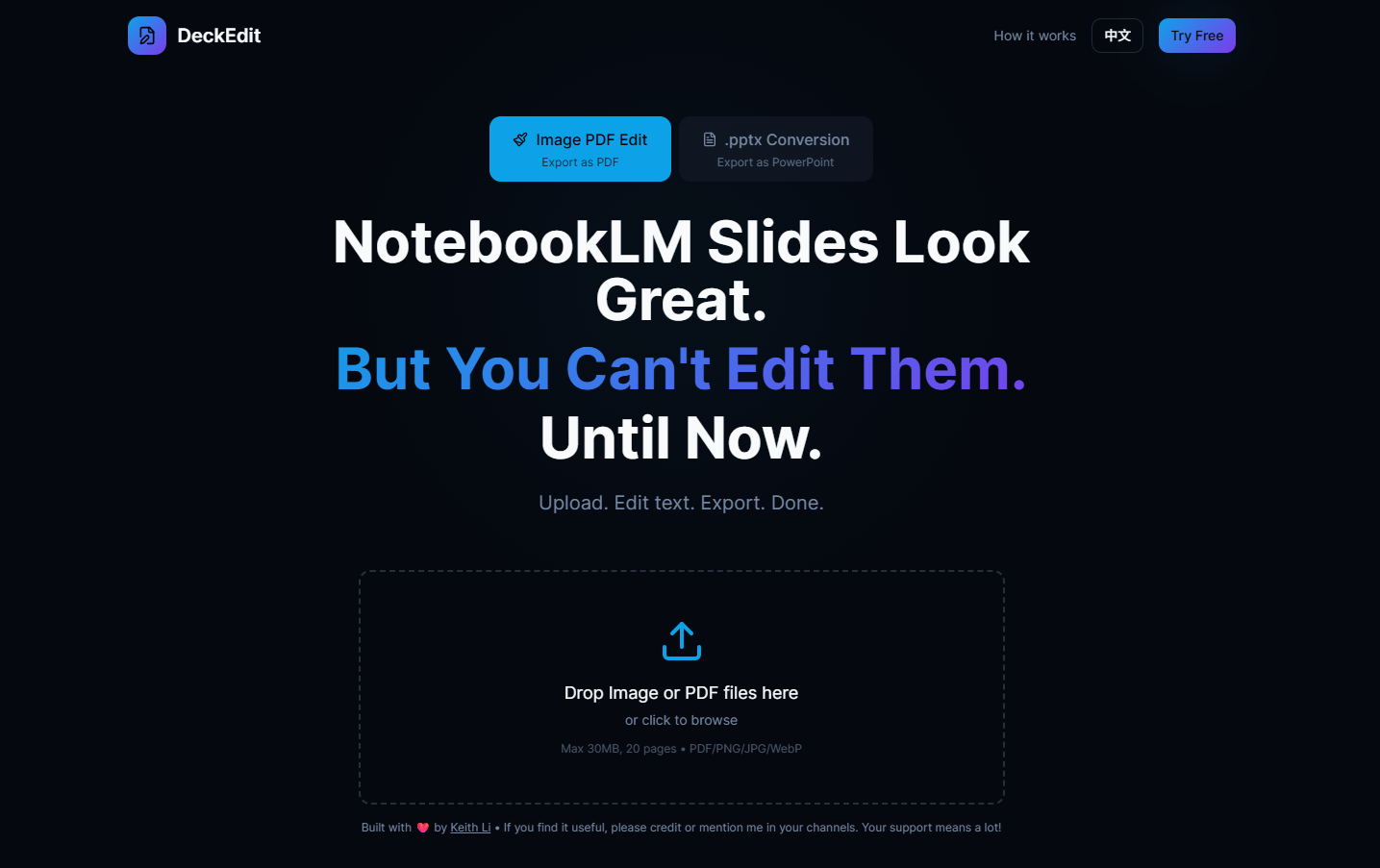
Tool: DeckEdit (developed by a Hong Kong IT team - KeithLi)
Workflow:
1. Drag the PDF directly into the interface
2. Download the converted PPTX
Pros:
Completely free; no signup required; very high layout and layer preservation accuracy
3 Advanced Tips to Prevent Layout Breaks
1️⃣ Fix the Problem at the Prompt Level (Most Effective)
Next time you ask NotebookLM to generate a Slide Deck, add these constraints:
- One key point per slide
- Maximum 4 lines of text per slide
- Short titles
- Avoid multiple images on one slide
- Keep charts simple
- Minimize bilingual text within the same line
This alone can eliminate up to 50% of conversion issues.
2️⃣ Standardize Fonts Immediately
Most layout shifts happen because the original font isn’t available.
Action:
Open the converted file → Ctrl + A (Select All) →
Switch to a cross-platform font (e.g., Noto Sans TC, Arial).
3️⃣ Edit in the Right Order: Hard First, Easy Later
Don’t fix slides from page 1 to page 100 in order.
Correct approach:
- Start with the cover slide
- Then fix the text-densest slides
Once those are stable, the rest usually only need minor tweaks.